Related Links
Milestone XProtect
Use IDrive® e2 in combination with Milestone XProtect Video Management Software and stream videos to the cloud with low-latency live viewing and fast remote playback. Extend the storage to IDrive® e2 using a third-party application like Tiger Technology Storage Bridge.
- Log in to the Milestone XProtect Management client and click Storage Bridge. The list of Storage Bridge plugins installed on the Milestone VMS will be displayed.
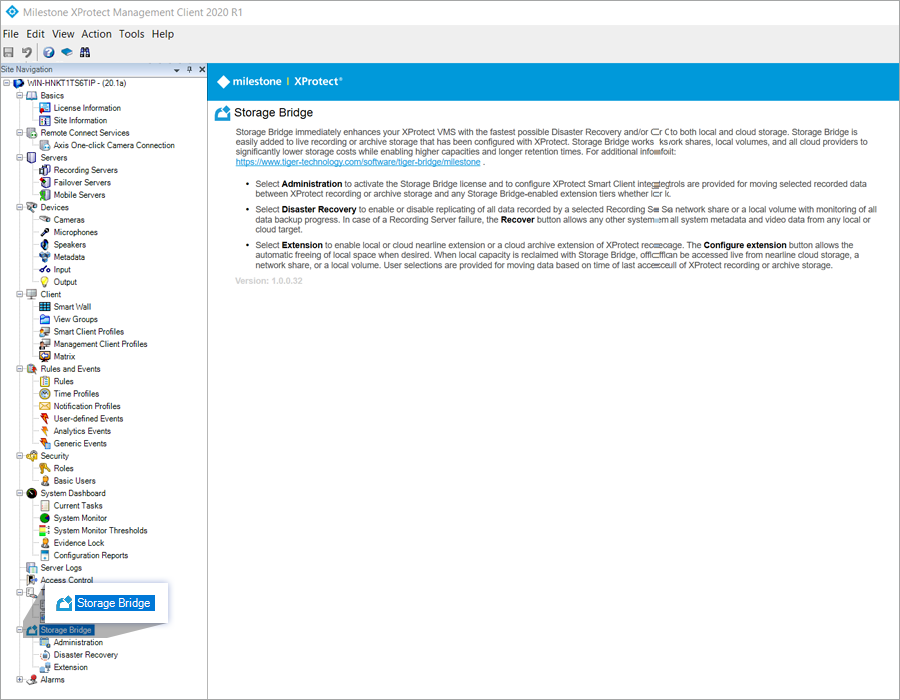
- Click Extension to view the location for storing recordings using the Milestone Recording Server.
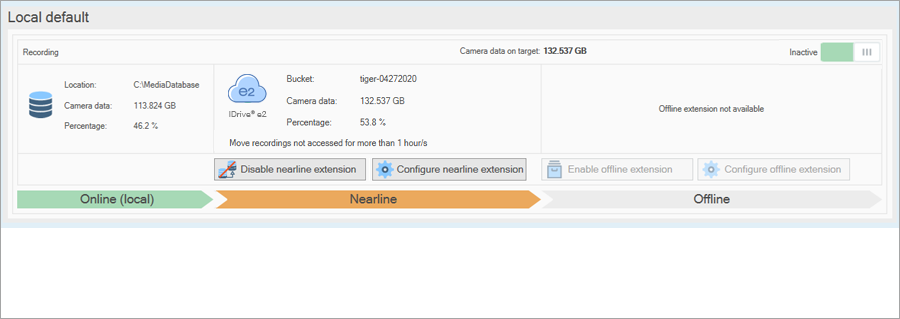
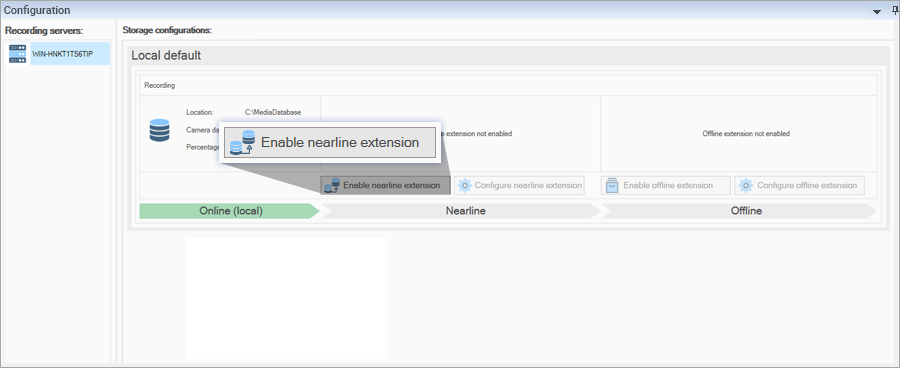
- Click Enable nearline extension.
- Select IDrive® e2 and enter the Server URL, Region, Access Key, and Secret Key obtained from your IDrive® e2 account.
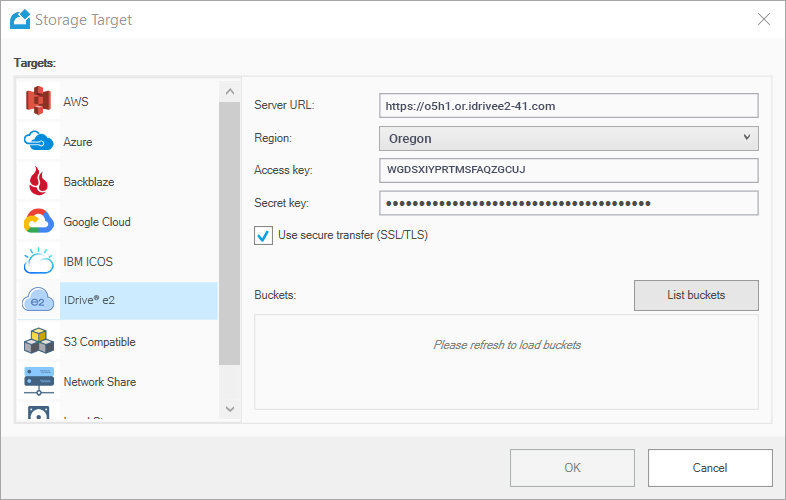
- Click List Buckets.
- Select the IDrive® e2 bucket and Click OK to confirm.
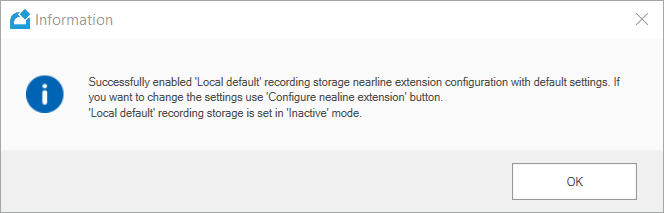
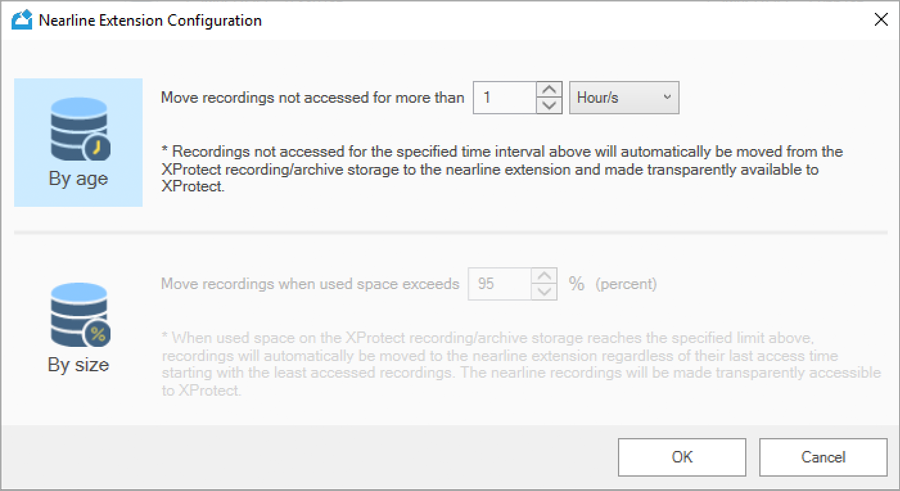
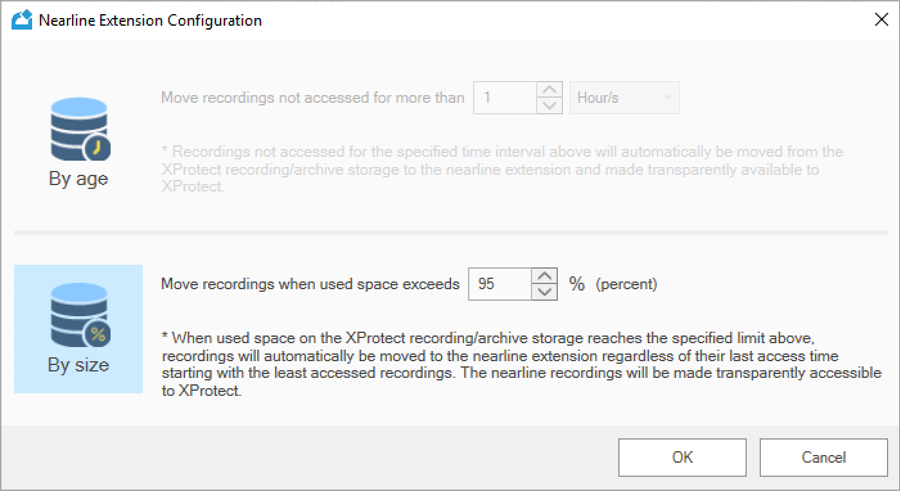
- Click Configure nearline extension.
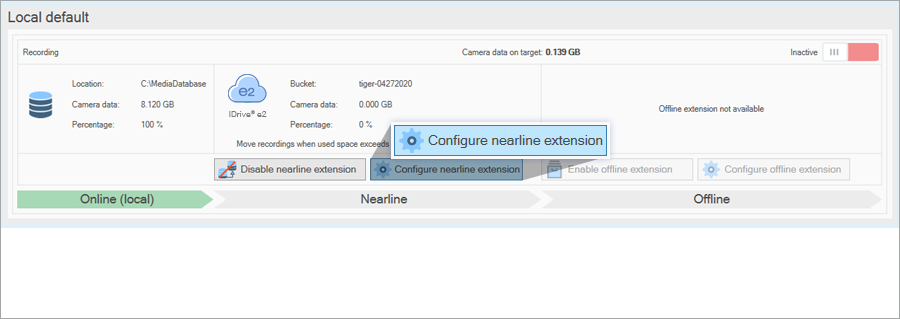
- Choose any two options as shown below and set the default pre-condition to transfer the recordings to IDrive® e2. Click OK.
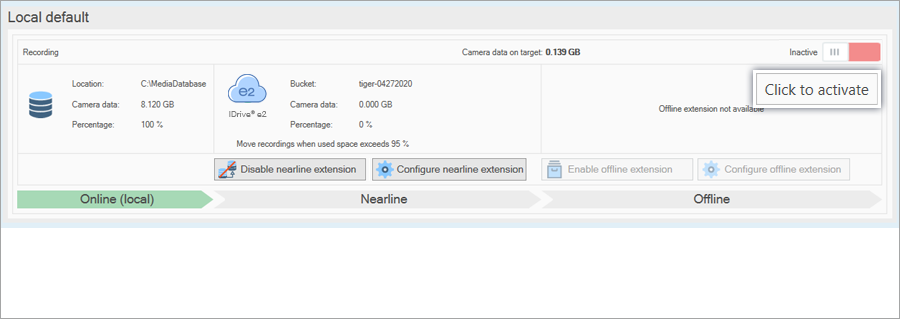
- Click Click to activate.
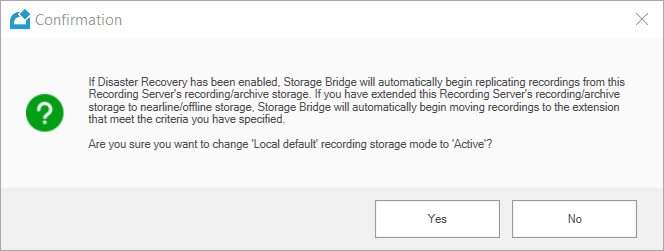
- Click Yes in the confirmation pop-up.
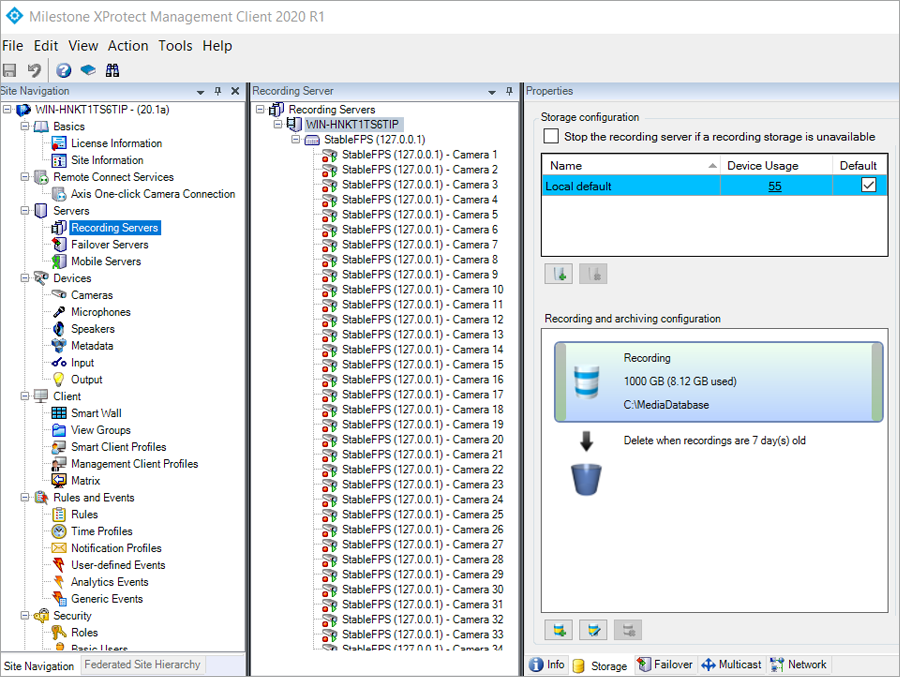
- The recordings will be stored in the location specified in steps 2.
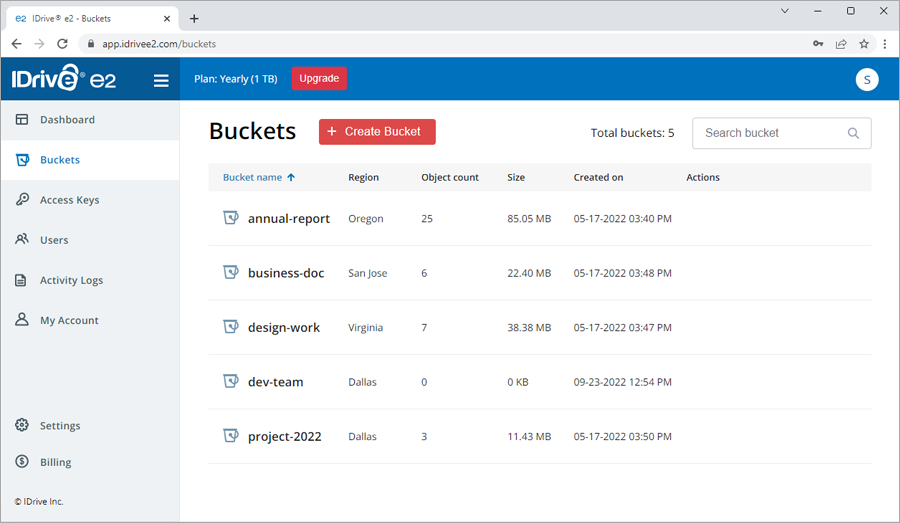
You can also view the recordings in your IDrive® e2 account by browsing the target bucket.