Related Links
Integrate SyncBackPro with IDrive® e2
SyncBackPro is a sync tool for the Windows platform. Use SyncBackPro to backup your Windows computers and Servers to IDrive® e2 hot cloud storage with ease. Learn more about SyncBackPro.
Prerequisites
Before uploading files using SyncBackPro, you require:
- An active IDrive® e2 account. Sign up here if you do not have one.
- A bucket in IDrive® e2. See how to create a bucket.
- Valid Access Key ID and Secret Access Key. Learn how to create an access key.
- Download SyncBackPro.
Configure SyncBackPro with IDrive® e2
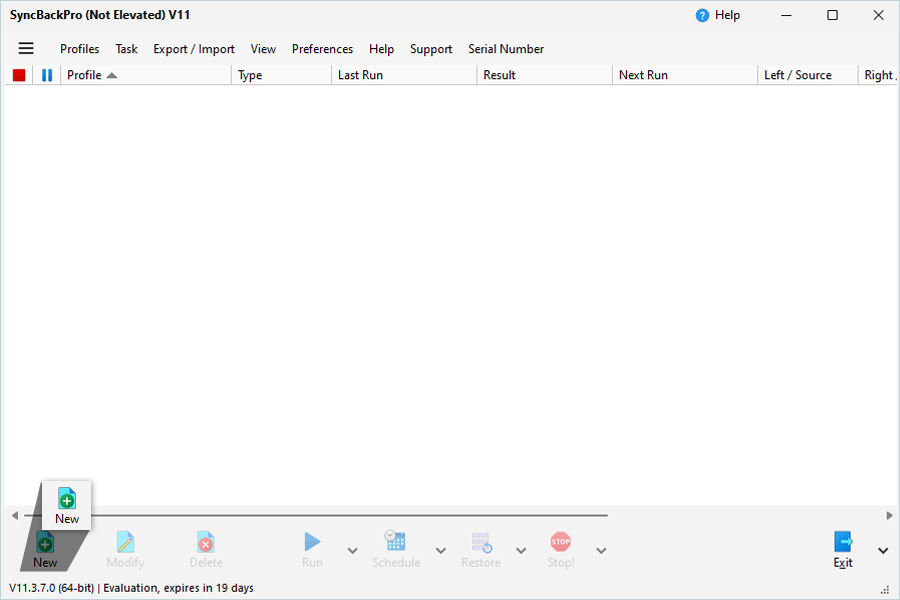
- Click New to create a profile.
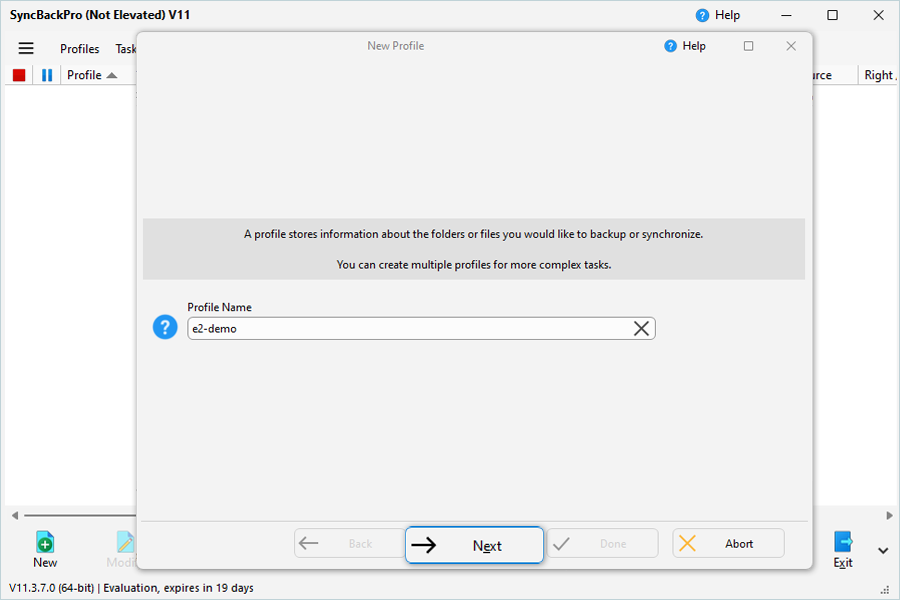
- Enter a profile name and click Next.
- Select Backup and click Next.
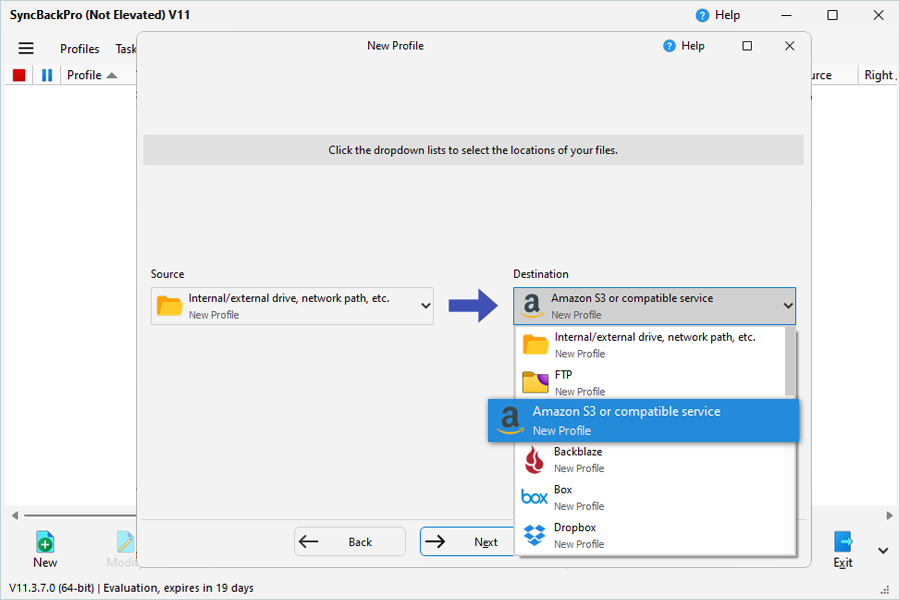
- Enable S3 Compatible check box.
- Select Destination (Amazon S3 or compatible service) and remove the source..
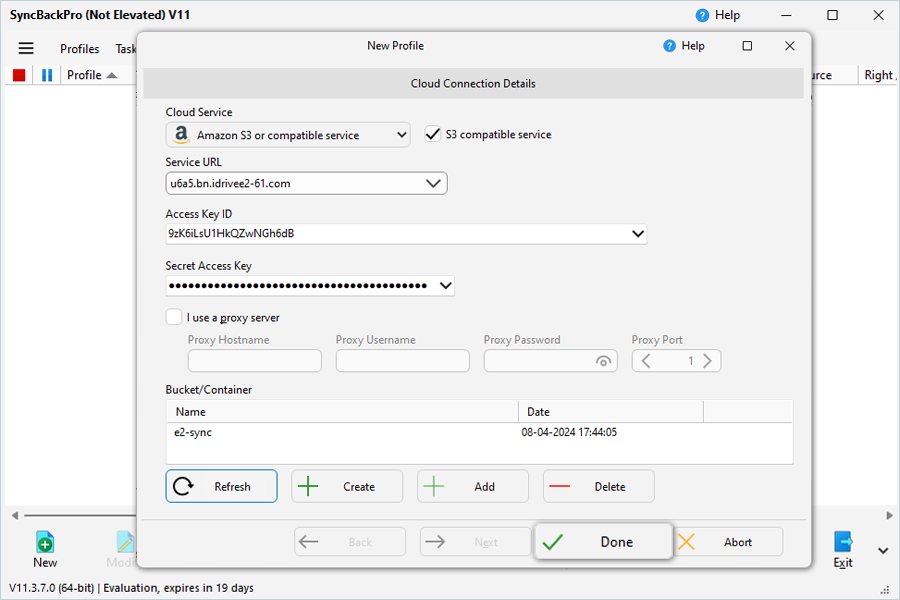
- Enter your IDrive® e2 storage endpoint as the service URL.
- Enter your IDrive® e2 Access Key ID as Access Key.
- Enter your IDrive® e2 Secret Key as the Secret Key.
- Click Refresh to get available cloud storage buckets in that region.
- Select the bucket that will contain your backed-up files and click Done.
- Choose a directory for source.
- Click OK.
- Select added Job and click RUN.
- Confirm both source and destination.
- Click Continue Run.
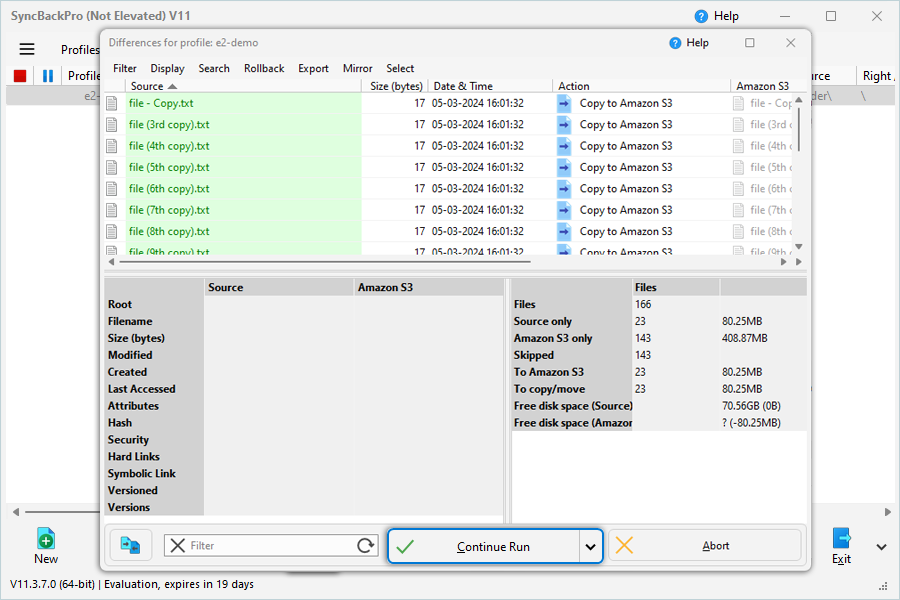
The user can see the progress of their backup.
Note: Data restoration is handled by your specific backup solution provider and is affected by multiple variables that are unique to your environment. For application-related enquiries/support, it is strongly recommended you seek guidance from the technical team of your backup solution provider.